
Build
Spec mode
Agree what done means before anything changes: the agent proposes a spec, you accept, change or discard it, and only then does the work start.
For a request with more than one moving part, ask for a spec first. The agent reads the code and answers with what you will see when it is done, how each part will be checked and the decisions that are yours - and changes nothing until you accept.
Ask for a spec#
Write the request as usual.
Hold Send for a moment (or right-click it, or press the up arrow while it is focused) and switch on Spec mode.
Press Send. Spec mode switches itself off after each message.
Let customers pause their subscription for up to three months from the billing page, and email them a week before it restarts.
Read the proposal#
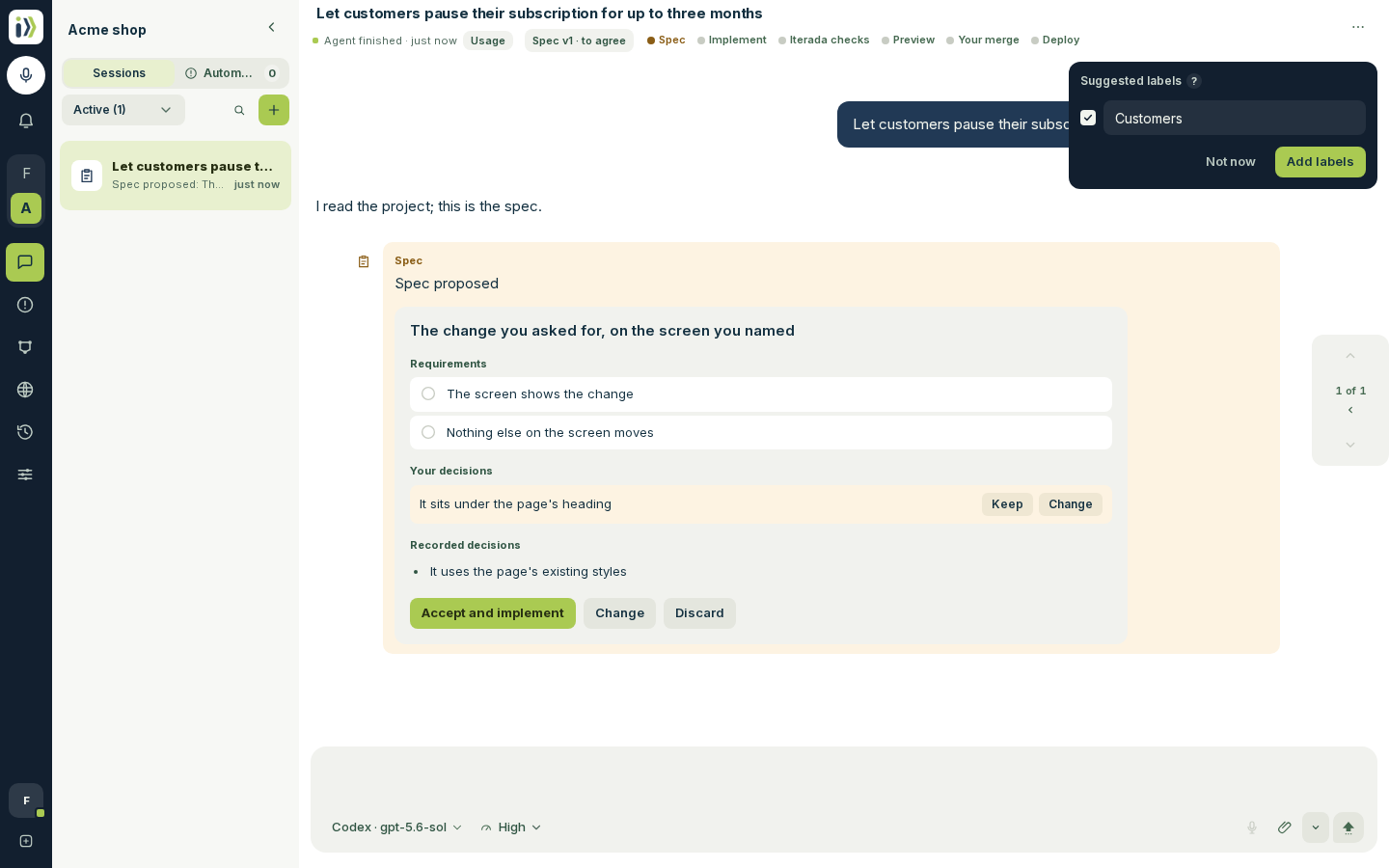
The proposal stands in the conversation:
The outcome, in one sentence.
Requirements: what you will be able to see or do, each one checkable.
Your decisions: choices the agent will not make for you. Press Keep to accept its suggestion or Change to say what you want instead. Pressing again takes the answer back, and nothing is saved until you press a button below.
Technical considerations, when there are trade-offs you should know about, and Recorded decisions, the smaller choices the agent made and noted.
Accept, change or discard#
Accept and implement starts the work on exactly this spec, with every decision you kept.
Change takes you to the message box, with a line for each decision you marked Change, to say what should be different; the agent sends a new version.
Discard drops it, and nothing was changed.
After you accept#
The agent marks each requirement as it goes, with the evidence: the test that ran, or a screenshot of the screen. A requirement reads Verified, Differs, Failed or Not checked, and each piece of evidence says who produced it: Iterada ran it (your project's tests or product tests), a second agent checked it, or the agent reports it. A requirement with no evidence reads as Not checked, whatever the agent says, and only a check Iterada ran and saw fail reads as Failed.
In a session that began with Spec mode, a turn that changes the spec - a requirement added or reworded, a decision, a completion mark - shows a Spec note in the conversation with only what moved. A turn that changes nothing in it stays quiet. Verification on the note opens the evidence behind the marks.
Open the spec any time from the Spec label under the session's name, or from the session's menu on a phone; its earlier versions are listed there too. An agent can also write a spec on an ordinary request, when it wants your approval of the scope; it then stands in full beside its reply, the same way.
Updated · View as Markdown · What changed recently