
Ship
Merge and review
Decide how a finished change reaches your default branch: when you press Merge, or by itself once checks pass, with a preview or a second agent's review.
Nothing reaches your default branch except the way you set it. The rules live in one place, Agent factory, so every session of the project follows them.
Set the merge policy#
How your changes merge is which steps your workflow has. Open Agent factory, then Workflow:
To have a change merge by itself, press Add step and choose Merge under Step. Without one, each change waits for you to press Merge.
To try a change before it goes on, press Add step and choose Preview under Step. Iterada starts a temporary copy of the product with the change in it and waits for you to accept it or ask for changes.
Keep an Iterada checks step before Merge, so a change merges only once your tests have passed on it. Under What runs, choose your Tests, your Product tests or both.
Press Save. The workflow the project uses is how it merges, so saving it sets the project's merge policy for every session started from then on.
| Policy | Good for |
|---|---|
| No Merge step | A product with users, until your tests cover what matters to you. |
| A Preview step, no Merge step | Changes you want to click through before you merge them. |
| A Merge step | Fast iteration on a product whose tests you trust. |
Have a second agent check the work#
Add a Code review step before Merge in the workflow and save it. After each change, another agent of the project reads it against what was asked, without changing any files, and says whether it is ready; when the session has a spec, it also marks each requirement it could confirm. Until it approves, the change is built again with what it found, twice at most. It runs one more turn per change, so it roughly doubles what a change costs.
Merge a change yourself#
When a session's change is waiting for you, the session shows Merge into at the top, followed by the name of your default branch. The Notifications bell lists every change waiting for your merge. If the change needs a value only you have, merging waits until you set or skip it under Notifications.
Override it for one session#
A session merges the way its workflow does. To keep one risky change for your review while the rest of the project merges by itself, hold Send (or right-click it) and send that message with a workflow that has no Merge step.
Workflows of your own#
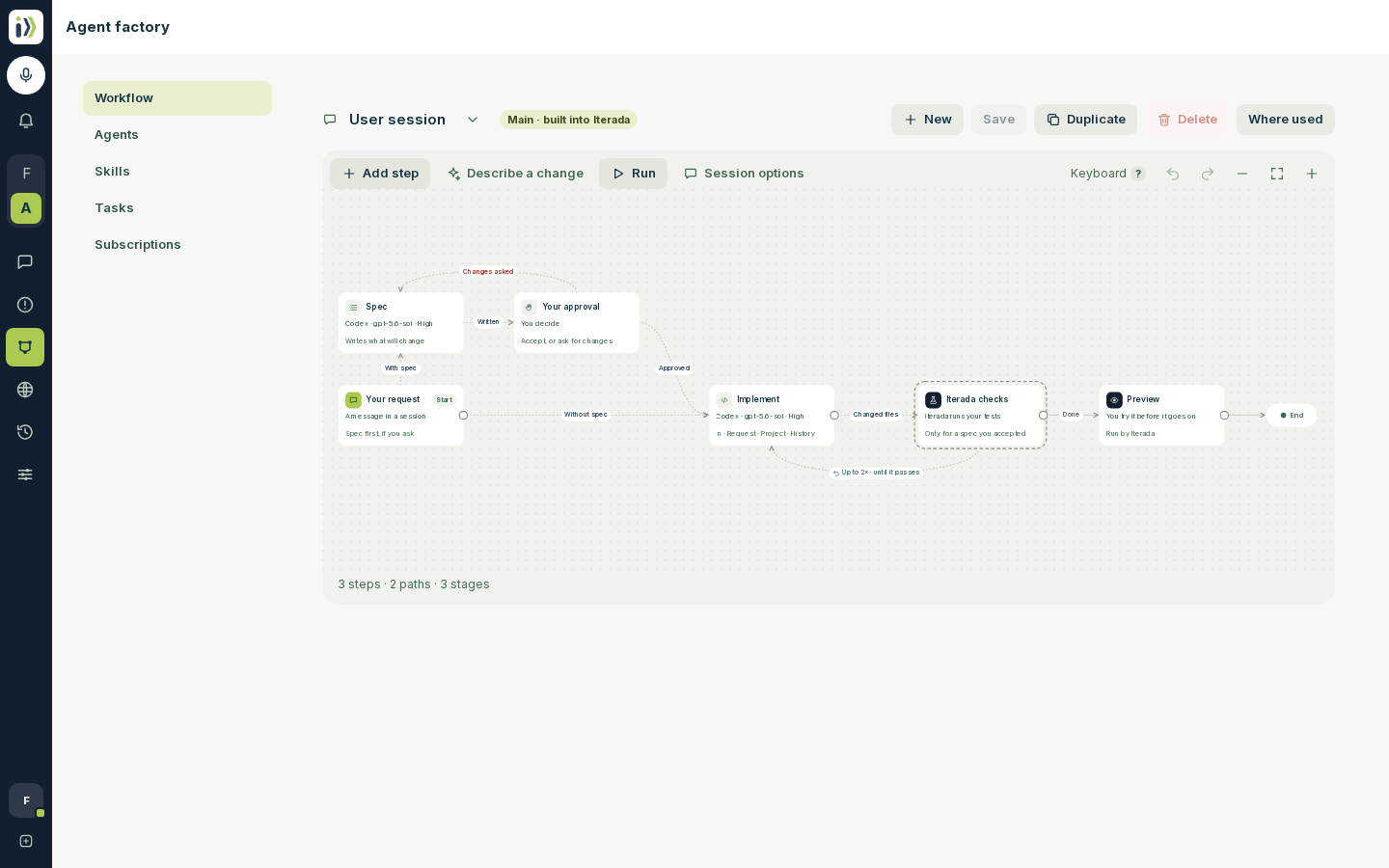
The Workflow tab draws Iterada's own delivery path as a workflow named User session: it starts at Your request, which begins with a spec only when you send with Spec mode, then the change, Iterada's checks, a review when it is on, a bounded repair, then merge. Deployment follows the separate On merge workflow. Your request branches: with a spec it goes to the Spec and Your approval, which leads on when you approve and back to the Spec when you ask for changes; without one it goes straight to the first step. When the workflow merges by itself, it also draws the Preview the merge does not wait for, and Fix, which repairs a held merge before it is checked again. Steps the project does not have are not drawn. The workflow's name at the top opens the list of workflows: Default workflows are Iterada's own, drawn from your settings (User session, Quiet hours, Issue fixes and On merge), and Project workflows are the ones you save. Session options holds what every session can do beside its steps, Explain and Parallel split; there, and on Fix, you choose the agent that does that job in every session, saved on its own without changing the workflow. Drag any card to move it anywhere on the canvas; where it sits is kept at once, with nothing to save, and Tidy up lays the cards out again. The canvas takes every change, even one that cannot run yet, such as a path out of Merge: it says what is wrong above the steps, and Save and Run wait until it is put right. Add step adds a step at the end of the workflow and opens it; the plus on a card offers Next step, Step at the same time and Repeat this step. Describe a change has an agent redraw the workflow from your words: you review the draft on the canvas and nothing is saved until you press Save. Each step is one of Iterada's building blocks, chosen under Step: agent steps such as Implement and Code review, your own approval, or Iterada's checks, merge and deploy. Actions such as Wait, Observe, Run project command, Notify and File artifact combine in any workflow: a step's Handoff tab declares the results it hands on, as text, a number, yes or no, or a list, a path can wait for one of them through Compare a result on its label, and Run for each item runs a group of steps once per item of a list. In a workflow that starts on an event or a schedule, Deploy deploys a chosen revision when it is reached and can have steps after it - see Production. The step decides whether it may change files, what it is asked to do and when it runs; you decide which steps the workflow has and in what order. Spec mode is not a step: press Your request to switch it on or off for the workflow and choose the agent that writes the spec. A spec waits for you to accept it before the first step runs. A step's Handoff tab lists what it sees: the request, the project, the conversation and the results of earlier steps. A step that only reads, such as Code review, can also approve or not, and a path or a repeat after it can wait for that. The Merge step controls whether changes merge by themselves, and the checks and review before it control what a merge waits for. On merge controls deployment: its Hotfix branch deploys immediately, and its Regular branch waits until no session is changing files, for 20 minutes at most. A change is a hotfix when it comes from Fix it on a failed deployment, or when Iterada is highly confident it is an urgent fix for something broken in production; such a session wears an urgency mark before its name in the session list. Its two branches are fixed: they cannot be removed, added to or changed, while the steps after each are yours, and a branch with nothing after it does nothing. A project that deployed manually keeps nothing after Regular until you add steps there. Older saved request workflows can still contain a Deploy policy step. Untouched, it reads Main · built into Iterada, and Run tries it on a request of your own without saving a copy or changing what the project uses. Change any step and press Save, and your version stays the project's main workflow; a workflow you start from New becomes it once you choose Make main. Plain Send uses the main workflow; hold Send, or right-click it, to send a message with any other, and that session keeps it. A session keeps its workflow as it was when the session started: changing a workflow, or making another one main, reaches only sessions started afterwards, so work already under way never changes its steps, how it merges or what it waits for. Sending a message with a workflow chosen moves that session onto the workflow as it is now.
The canvas is where a workflow's shape changes. Drag from the round handle on a step onto another step to add a path, back onto an earlier step to repeat from there, or onto End to end the workflow after it; drag from the start's handle onto the step the workflow should start with. Every path is labelled with what takes it, such as Done, Approved or Failed: press the label to choose another result, Lead to another step or Remove path, or drag the path's arrowhead onto another step. Press a repeat's label to set how many times it runs and when it stops, or Remove repeat. Where several paths lead into a step, the step says it Waits for all of them; press that to start it after the first instead. On a phone, tap a handle and then the step it leads to. Each gesture also works from the keyboard, as Keyboard in the canvas's toolbar explains, and a step's own panel keeps only what the canvas cannot show: its agent, model, skills and what it sees.
A workflow can also run by itself on a clock: choose New, then Runs on a schedule, and press its Schedule start to set the Cron - the five fields of a cron schedule, read on your own clock, which its settings explain with examples - and What it works on. Press Save and every time the schedule names starts a run of it as a session of its own; press Run to try it now.
Every workflow has one Enabled switch beside its state at the top of the studio: switch it off and press Save to keep the workflow without running it - no schedule, deployment, merge or event starts it, and it leaves the workflows you can choose when you hold Send, while sessions that used it go back to the main one. The main workflow, User session unless you make another main, always stays on. Quiet hours' Enabled is the same switch as the one in Settings, under Automation, and it takes effect as soon as you change it in either place.
Events your own integration sends to the project can start a workflow too: choose New, then Starts on an event, and choose Custom events in its Event field. Custom events have no types to pick. Write in Instructions, in your own words, which events to handle and what to do with their data; every event starts a run whose first step, an agent, reads them with the event's data, handles only the events they describe and stops at once for any other. To let a tool such as a payment provider, a shop or a monitoring service send events, press Create address under Event address and paste the address into the tool's webhook settings. It is shown only once; Replace address makes a new one and stops the old one, and Remove address stops it altogether.
A successful deployment can start another workflow: choose New, then Starts on an event, and choose A deployment succeeds in its Event field. Wait for a quiet machine waits for spare CPU capacity; Parallelism accepts any whole number greater than zero. Queue mode offers Queue, which runs each deployment oldest first, or Sliding window, which keeps the newest revisions up to Parallelism and stops the oldest run when full.
Updated · View as Markdown · What changed recently