
Get started
Quickstart
Sign in, start a project, add your first coding agent and ask for your first change, in about ten minutes.
By the end of this page you will have a project, an agent signed in with your own subscription, and a first change made, checked and ready to merge.
Before you begin#
A subscription to Claude, ChatGPT (for Codex) or Cursor, or a key for Pi or opencode.
For an existing product: the address you clone its repository from, and permission to add a deploy key to it.
Step 1: Start a project#
Sign in, then choose how to begin.
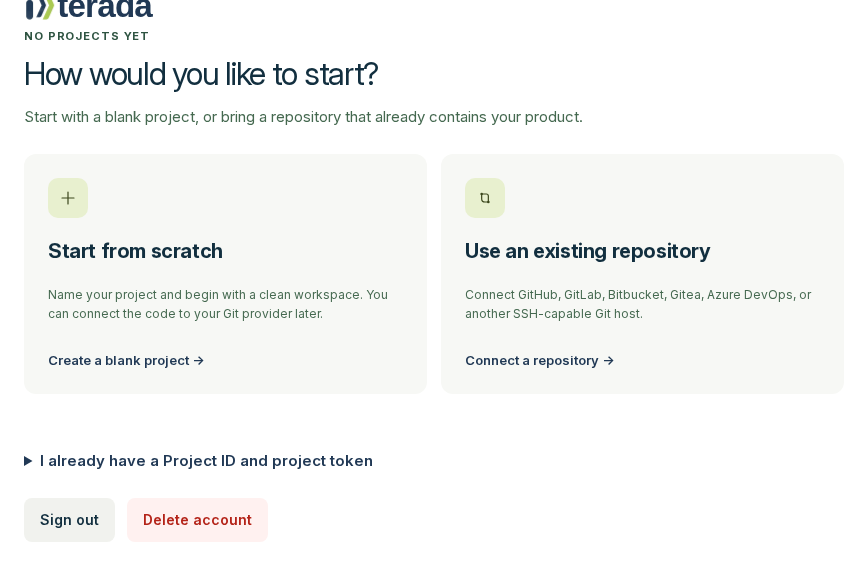
Choose Start from scratch, give the project a name and press Create project. Iterada keeps the code until you connect a Git host of your own.
Or choose Use an existing repository, paste its Repository clone URL and press Continue. GitHub, GitLab, Bitbucket, Gitea, Azure DevOps and any Git host reached over SSH work.
For an existing repository, press Copy key, add it as a deploy key with write access in your Git host's settings (Open repository settings takes you there), then press Verify repository access.
Step 2: Add your first agent#
Your first project opens on the getting-started guide, which walks you through the next steps on the real screens: add an agent, sign it in, bring the agent setup you already use if you want to, turn on subagents, add a skill if you want to, and ask for your first change. You can skip a step and come back; Open guide on your Account page reopens it in any project.
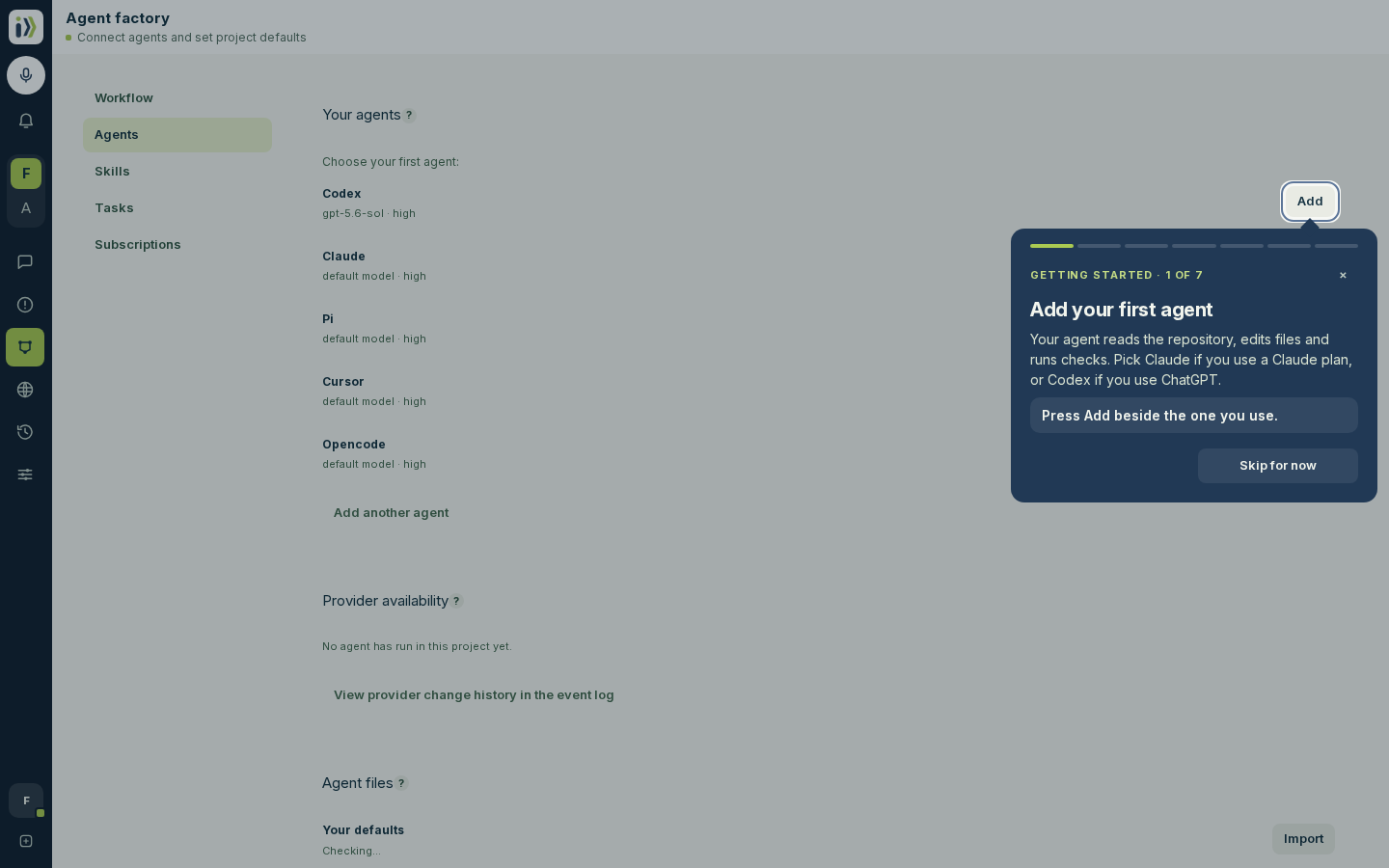
Press Add beside the agent you have a subscription for: Claude if you use a Claude plan, Codex if you use ChatGPT.
Under Sign-in, copy the command shown, run it on your own computer, and paste what it prints into Value. Press Add login.
Press Configure on the agent's row, set Autonomous subagents to Allowed and press Save, so the agent can hand parts of a larger task to subagents of its own.
You can add more agents later. They run in the order listed, and the next one takes over when one plan runs out: see Agents.
Step 3: Ask for your first change#
Press New and describe the outcome you want. Start small, so you can see the whole round trip.
Add a short FAQ section to the home page with three questions a new visitor would ask, written in the same tone as the rest of the page.
Press Send. The agent reads the code, makes the change on its own branch and runs your checks. You can close the tab: the work carries on and the session marks when it is done.
Step 4: Read the reply and ship it#
The reply says what changed, how it was checked and anything waiting for you. Under it, Iterada lists the files that changed and links the branch.
Ask for adjustments in the same session, as you would with a colleague.
When you are happy, press Merge into at the top of the session, followed by the name of your default branch - or let it merge by itself once checks pass, if your workflow has a Merge step.
Open Production and press Deploy latest to put it live.
After your project's first change, a short guide opens in the session to show where the change is, how your project merges and how it goes live. Press Show what happens next under the reply to open it again.
Next steps#
Updated · View as Markdown · What changed recently