
Ship
Production
See exactly what is live and what has reached your default branch, deploy a new version, roll back, watch production's health and see how the product is built.
Production shows what your users have now next to what is latest on your default branch, so you always know what a deploy would ship. When the project has an address, a third card shows it with an Open link, or says why it is not reachable yet. Everything below is on the Overview tab.
Deploy#
Open Production. When the default branch is ahead of what is live, it offers Deploy latest. Until deployment is set up it reads Set up deployment instead and starts that setup in a session - see Set up delivery.
Press it and confirm with Deploy to production. If parallel sessions under a merged parent are still unmerged, the confirmation lists them and says the deploy will not include them.
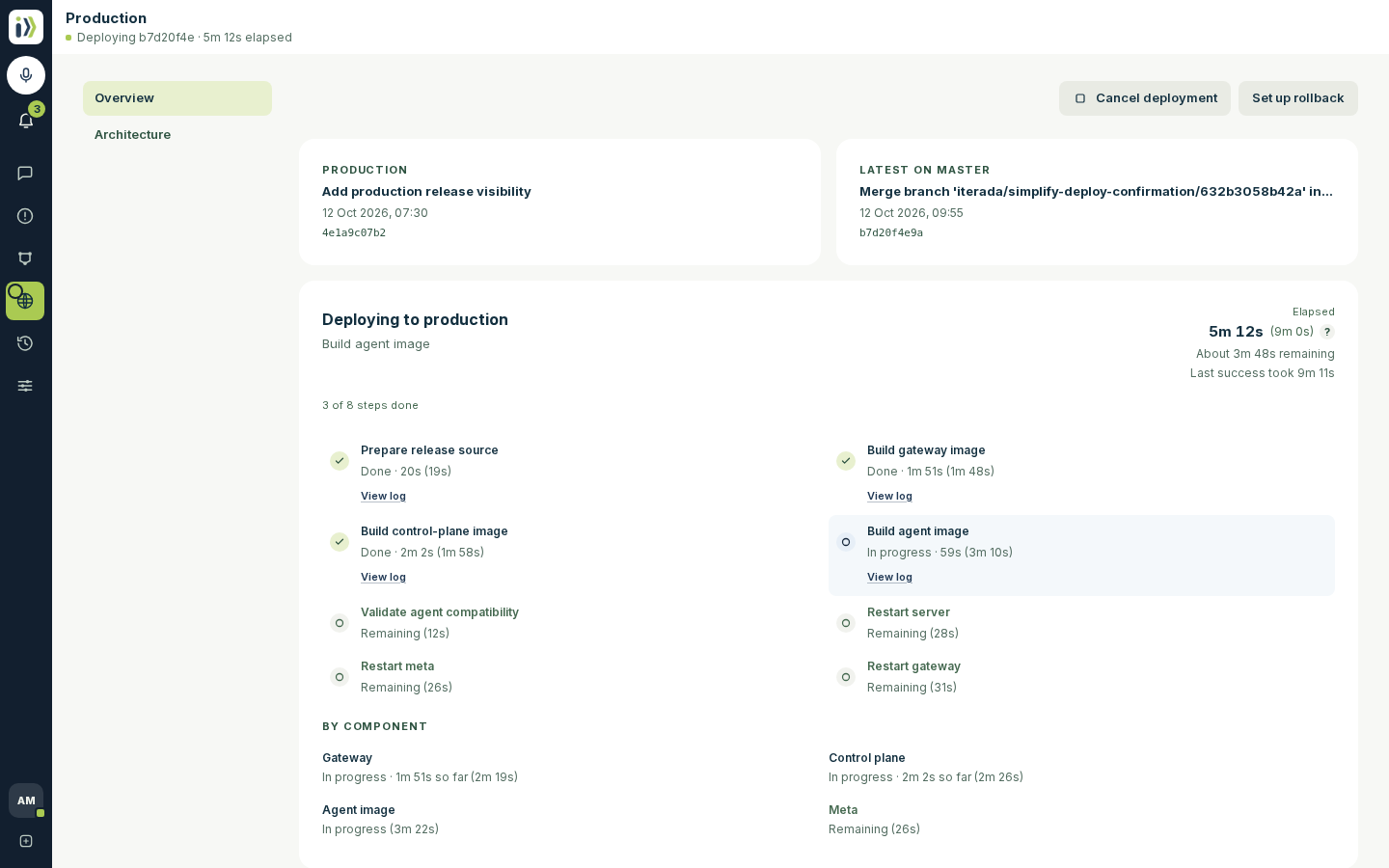
Follow the steps as they run, with how long it has taken and how long is left. The version that is live keeps serving until the new one passes its health check.
Each step shows what it took with its average in brackets, for example Done · 1m 51s (1m 48s), and the deployment shows its own time with its average beside it and how long the last successful one took. The ? beside the total says what the brackets are: the average of the last ten successful deployments, leaving out any whose time was far from the typical one - more than three times the usual spread from the middle time - so one cold build or one mis-measured run does not move it. Until there is an earlier deployment to measure against, the time left is a rough estimate. Iterada's own deployments also add up each part's build and restart under By component.
You can also right-click Production in the left rail, or press and hold it on a phone, and choose Deploy latest without leaving the page you are on.
To deploy automatically, open On merge on Workflow in Agent factory, add Wait and Deploy steps after its Regular branch and press Save. It waits until no session is changing files, for 20 minutes at most; hotfixes follow the immediate branch - see Merge and review. While its branches only wait and deploy, On merge opens no session: you follow its deployment here, and it opens one only to tell you why a run failed.
The Notifications bell tells you when a deployment failed, and when changes are ready to deploy and nothing deploys them by itself.
When something goes wrong#
A failed deployment shows the step that failed. Press View log on a step that has one to read it, or Fix it to start a session in which an agent investigates, with everything Iterada recorded about the failure attached. Once its fix reaches your default branch, the Hotfix branch of On merge deploys it immediately, including while ordinary automatic deployments are paused after a rollback. Open this default workflow on Workflow in Agent factory to change its branches. The Regular branch waits until no session is changing files, for 20 minutes at most. Its two branches, Hotfix and Regular, are fixed; the steps after each are yours.
Rollback puts the previous version back: press it and confirm with Start rollback, and the steps show the same way a deployment's do. It works as soon as Deployment is set up, because without a rollback workflow of its own it deploys the previous version again. It reads No rollback available until there is an earlier deployment to go back to.
Cancel deployment stops one that is still running.
Redeploy current deploys the live version again on purpose, for example after changing a value it reads.
Recover by itself when production fails#
A workflow can react to production failing and put the last working version back. It reads production's health from Observability, once a minute while such a workflow is on, so set that up first.
On Workflow in Agent factory, press New and choose Starts on an event.
Press the start and set Event to Production fails.
Press the first step, set Step to Deploy and Revision to Latest working revision: the newest earlier release that did not fail. Latest default branch deploys what your default branch has now.
Add a step after it, set Step to Notify, write its Message, and press Save.
A recovery never overwrites a newer release: when production has moved on since the failure, the step stops instead. To confirm a failure before acting, put a Wait and an Observe step before Deploy and compare the health or error rate on the path between them.
Release history and health#
Below the deployment, Release history lists the merges and commits from what is live up to the latest on your default branch. A merge is named by the branch it came from, with every commit squashed into it listed under it. The live one is marked Production and the newest one Latest on, followed by your default branch's name.
Observability shows whether production is Healthy, Degraded or Down, with tiles for CPU, memory, disk, requests, errors, latency and uptime. Until the Observability row is set up in Set up delivery it reads Not configured and offers Set up observability.
See how the product is built#
The Architecture tab beside Overview reads your default branch and shows what the product does, a Map of its parts and who calls whom, what each part is for, and the outside services and stored data it depends on. Press Refresh to read the branch again.
Updated · View as Markdown · What changed recently