
Build
Ask for a change
Write a request a coding agent gets right the first time, follow it while it works, and read what comes back.
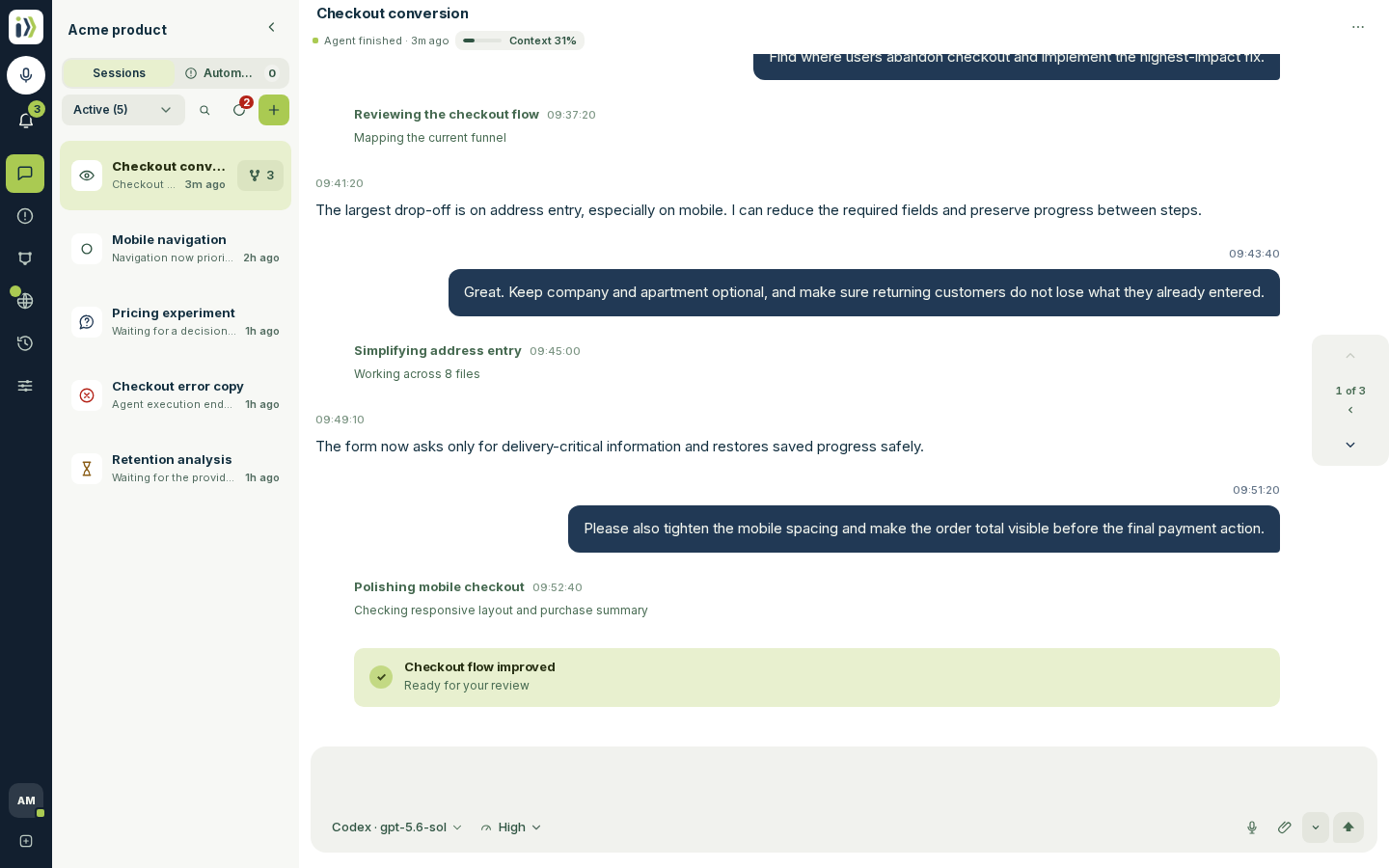
Every request starts a session: the agent works on a private copy of your repository, on a branch of its own, and answers in the same conversation.
Write the request#
Press New, type what you want and press Send. On a computer, Enter sends and Shift + Enter starts a new line; on a phone, Enter starts a new line and you tap Send.
Describe the result a person should see, not the code. Say where it is, what should happen, and how you will know it works.
fix the signup
On the signup page, a visitor who leaves the email field empty and presses Create account sees nothing happen. Show "Enter your email address" under the field instead, and keep what they typed in the other fields.
A few habits that make the first answer the right one:
Not ready to send? Press Save as draft to keep the message under Drafts without starting the session; send it from there when you are.
One outcome per session. Two unrelated changes are two sessions; they run side by side without touching each other.
Name the boundary cases. "Prices under 1 euro show two decimals" is a requirement; "format prices nicely" is a guess.
Show it. Press Attach files or paste a screenshot straight into the message box. Text, code, images, audio and video work, up to five files at a time.
Say it. Press Record voice instruction and talk; Iterada turns the recording into a clear written instruction. The first time, it asks for a dictation key on your Account page. The recording carries three controls: Pause, a stop square that puts the words in the message box for you to read, and a send arrow that sends them straight away. Every other box you write a message or a search in has the same microphone: click into it and it appears at its end, and while it records it never covers what you typed. Boxes that send what you write, such as a report or feedback, get the send arrow too. Names and labels are typed.
Choose who does it#
Under the message box, pick the agent and model for this message, and how hard it thinks: from Low to Extra high, with the levels each agent offers. The choice applies to this message only; the project's order of agents is set in Agents.
Before a message is sent, Iterada may check it and suggest a better way to run it. Suggested changes lists what it found, each with its reason: a higher or lower thinking level, a lighter or stronger model (for a session's first message only), another agent when the one chosen has little of its plan left, Spec mode, splitting the work into parallel sessions, or a skill that fits.
A change to how this one message runs arrives ticked. Spec mode and a skill arrive unticked, because they change what the work is or what every later session carries; tick Only this session under a skill to give it to this session alone. When a change switches the model or the agent, the thinking level comes with it, kept within what the new one supports. Press Send to run the message with the ticked changes, or Cancel to go back to the message box with nothing sent. When nothing is worth changing, the message simply sends.
While it works#
The session shows Agent is working… and every step the agent takes, folded into one line you can open. You can close the tab: the work carries on, and the session list marks when it is done.
Add to it. A message sent now waits its turn under the message box. Press Edit or Cancel on it to change your mind.
Change course. Press Interrupt on the message being worked on, then send what the agent should do instead. Files it already changed are kept, and the agent continues from where it stopped with your new message. Press Esc to back out before you send.
Pause and resume. Press and hold the cancel button beside the message box (or right-click it), then choose Pause, and the agent stops where it is. A play button takes its place: press it and the agent picks the work up again from where it paused, with every file it had already changed kept. On a phone both stay on the folded message bar, and the State line of Session details offers the same.
Cancel everything. Press the cancel button beside the message box, choose Cancel in the session's three-dots menu, or press and hold the session in the list (or right-click it) and choose Cancel there. The agent stops and every message waiting its turn is cancelled, a paused turn and a retry Iterada had planned included, so nothing else runs and the play button no longer offers to resume. Files it already changed are kept.
Read the reply#
The reply opens with what changed, then what was verified, and ends with anything only you can decide. Under it Iterada lists the files that changed, links the branch, and shows where the change goes next: merged, waiting for you, or held by a failing check.
Explain redraws the reply in plain words with one picture of what it means for the product.
Report incident tells the Iterada team something went wrong with this answer, with the logs attached if you choose.
When the agent needs a decision, it offers buttons. Press one, or answer in your own words.
When it needs a value only you have, such as a hosting token, the Notifications bell lights up: see Set up delivery.
Keep going#
Answer in the same session to adjust the change - the agent remembers the whole conversation and works on the same branch. Start a new session for the next separate outcome.
Updated · View as Markdown · What changed recently